Keep both devices nearby
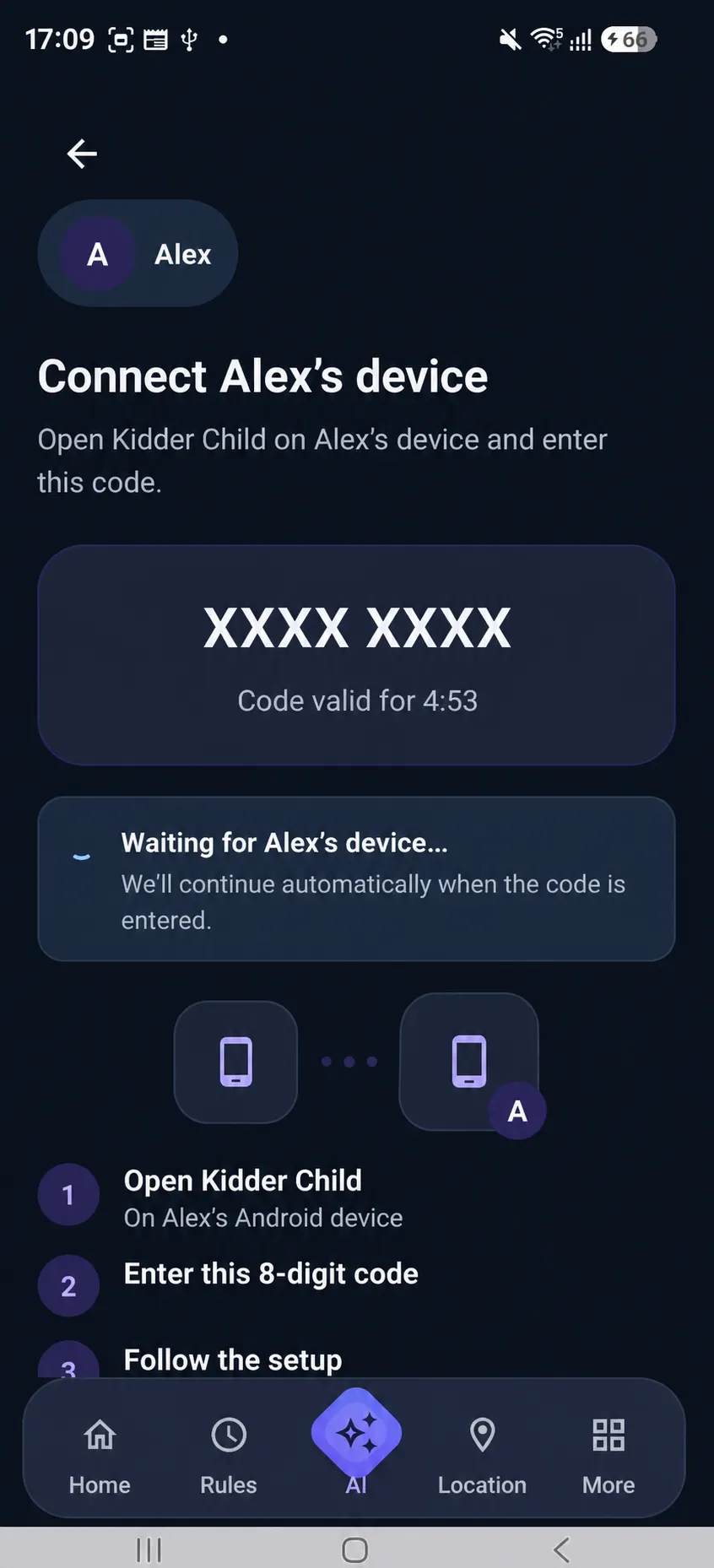
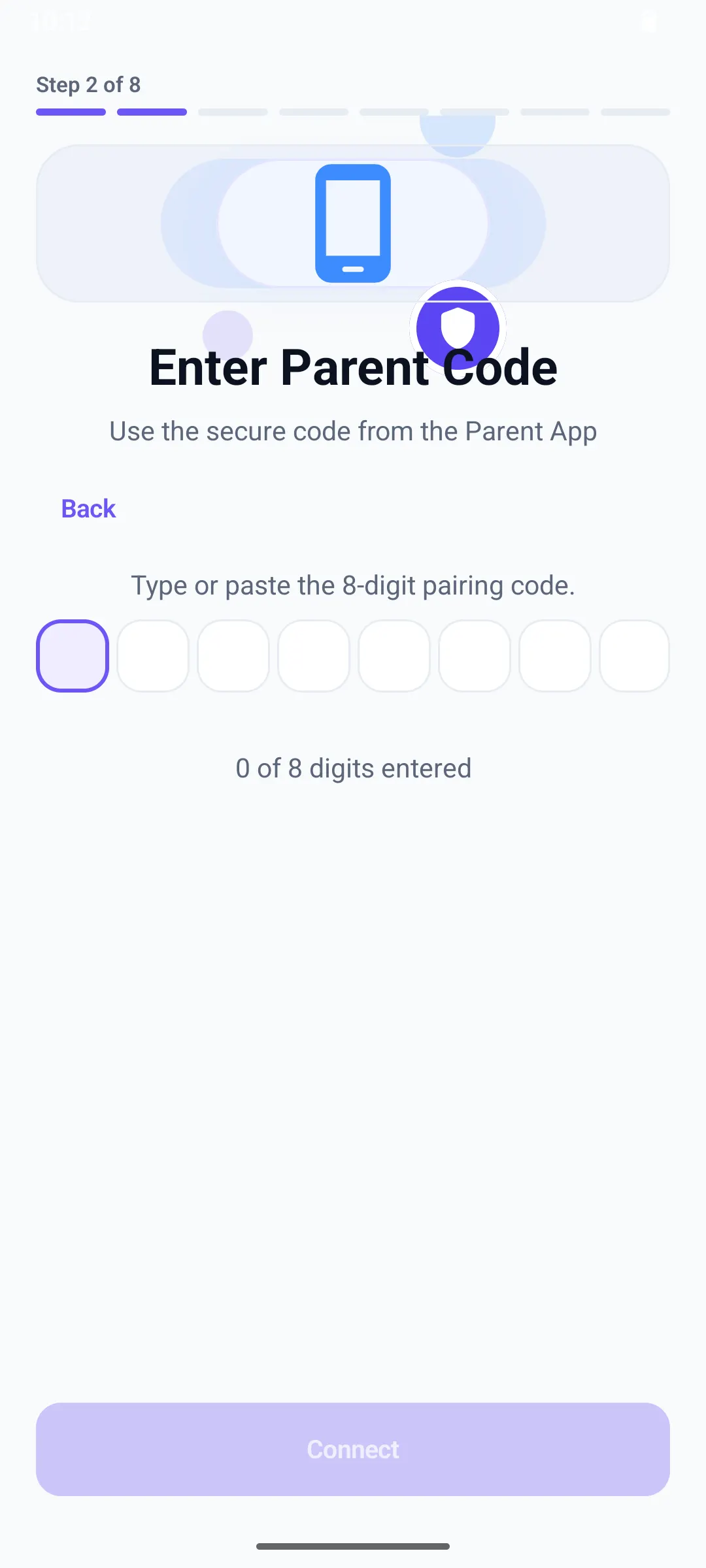
You will move between the parent and child devices during pairing.
Setup journey
A guided Android setup journey for the parent app, child device, pairing, permissions, and your first family protection settings.
Before you start
You will move between the parent and child devices during pairing.
A reliable connection helps installation and pairing finish smoothly.
Take time to explain what Kidder needs and why before enabling protection.
Your setup journey
Use this as preparatory guidance. Public app acquisition and account enrollment are not yet linked from this website.
Parent device
Use this guidance after Kidder publishes its official Parent App access path.
Open Parent App guideFamily space
When public access is available, begin the family space from the Parent App.
Connection
Prepare the supported Android device and connect it to the intended child profile.
Open pairing guideChild-device setup
Complete the visible, age-appropriate setup on the connected child device.
Open child-device guideFamily choices
Understand each requested access, then choose the settings your family needs.
Open permissions guideParent App
Review current status and useful family context, then revisit choices as needs change.
Explore the Parent experienceLaunch platform
Check the device considerations before beginning. Public app acquisition is not yet linked from this website, and compatibility can vary by device and software configuration.
If something does not look right
Make sure you are working on the intended parent or child device at each stage.
CompatibilityKeep both devices online and nearby while pairing or applying a setting.
Pairing guideIf a feature is unavailable, revisit the related permission and its purpose.
Permissions guide