Keep both devices nearby
The parent and child Android devices should remain available throughout pairing.
Android setup · Pair devices
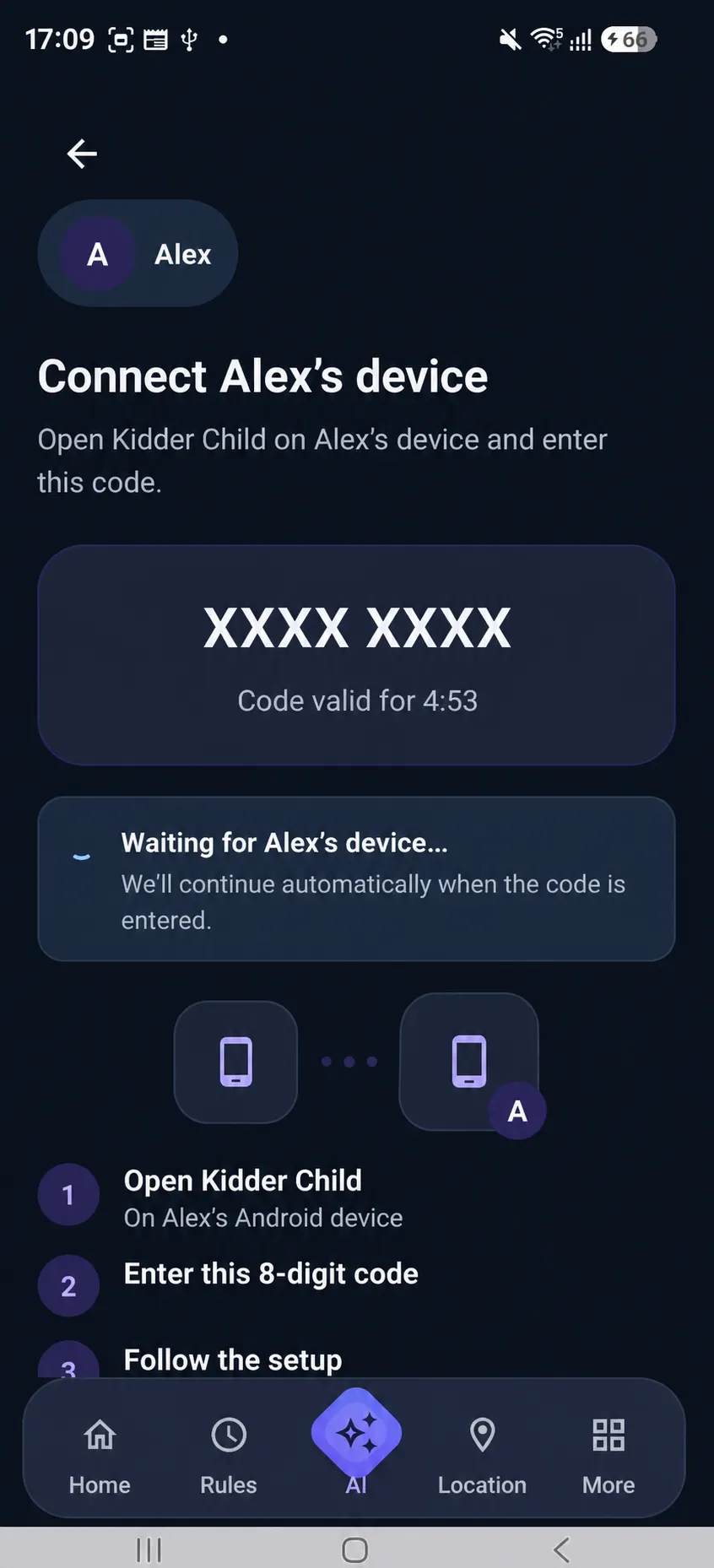
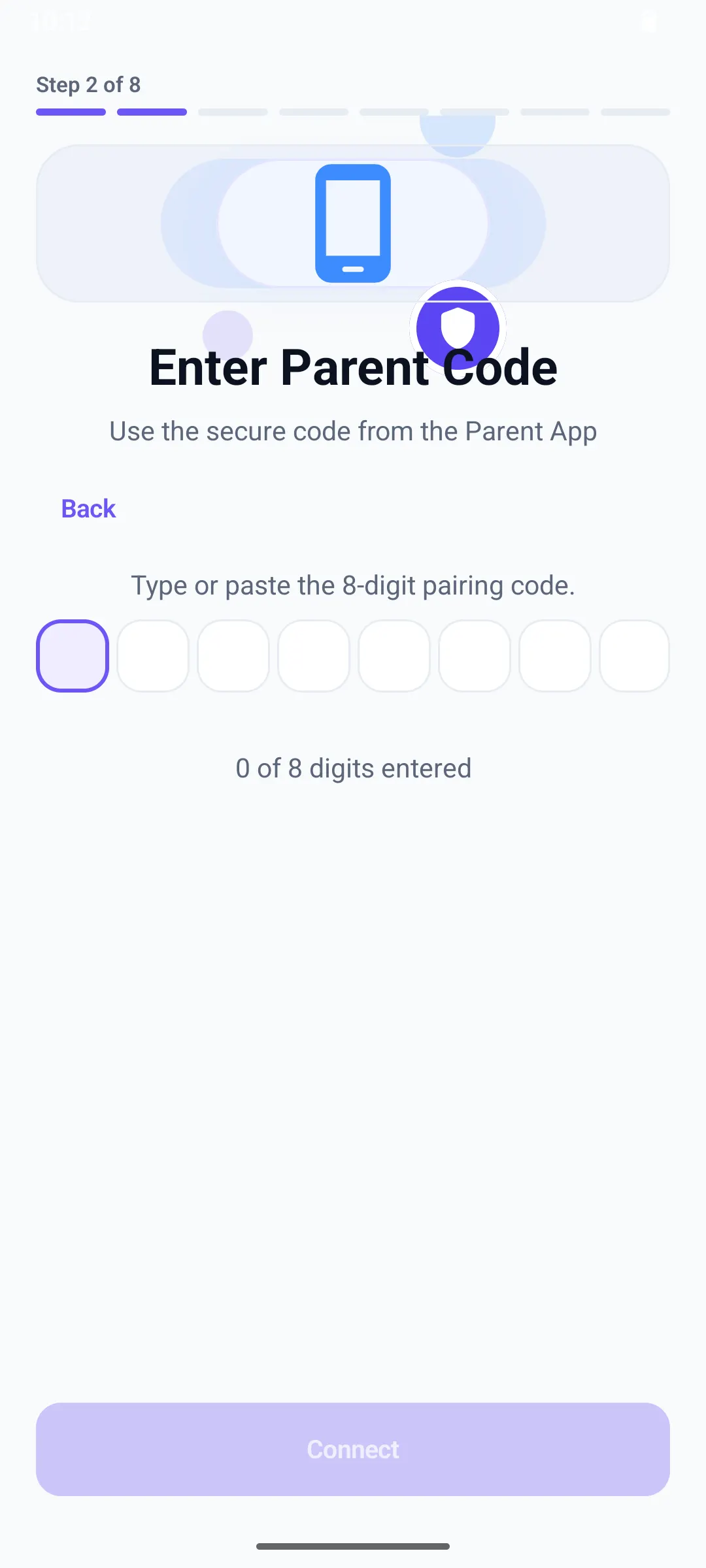
Pair the child Android device with the intended Kidder family profile, verify the match on both devices, and continue only when the connection is clear.
Before this step
The parent and child Android devices should remain available throughout pairing.
Know which Kidder family profile should receive the child device.
Use a stable internet connection and keep Kidder open during the pairing flow.
Step by step
Android labels and settings paths can vary by device. Read the wording shown on the device in front of you.
On the parent device, open the child profile and choose the pairing route presented by Kidder.
On the child device, remain on the pairing-ready screen.
Use the pairing method Kidder presents on screen and follow each instruction in sequence.
Before continuing, confirm that both devices show the intended child and device connection.
What you should see
The parent experience should show the intended child device as connected, and the child device should be ready for permission and protection review.
If it does not work
Check connectivity on both devices, return to the pairing screen, and begin the presented pairing flow again.
Do not continue. Return to the parent experience and select the intended child profile before restarting pairing.
Reopen Kidder on that device and return to the active pairing path shown by the product.