Complete device pairing
The intended child device should already be connected to the correct family profile.
Android setup · Permissions
Review the Android access Kidder presents, connect it to the selected family feature, and confirm the protection experience is ready without treating permissions as a hidden technical step.
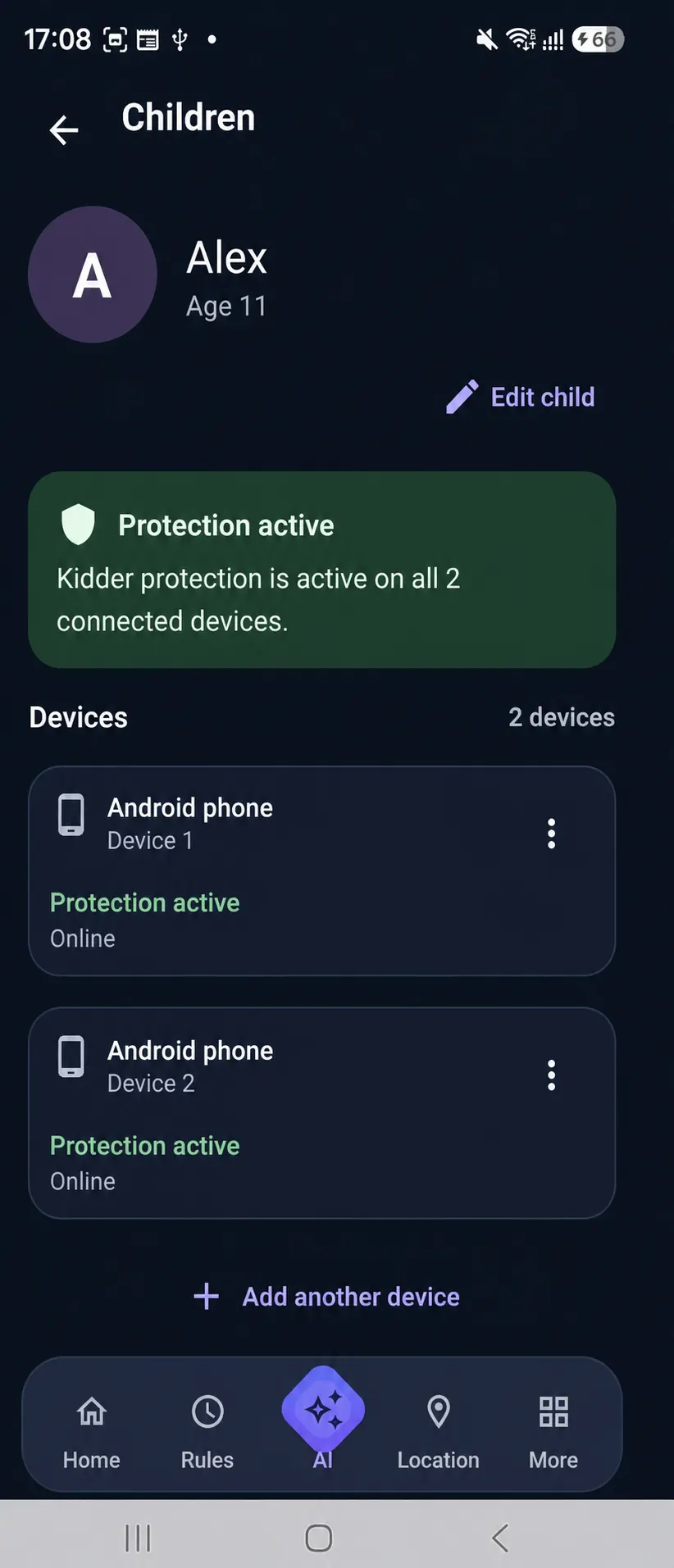
Before this step
The intended child device should already be connected to the correct family profile.
Some choices are reviewed on the child device while status is visible to the parent experience.
Explain which family feature is being prepared and why the related access matters.
Step by step
Android labels and settings paths can vary by device. Read the wording shown on the device in front of you.
Before responding to an Android request, review the explanation Kidder presents for the selected capability.
Use the permission or device-setting path shown on the child device. Names and locations can vary by device.
Confirm that Kidder recognizes the setting before continuing to the next requested access.
Finish only when Kidder shows the selected protection experience as ready or clearly identifies what still needs attention.
What you should see
The parent experience should show the child device status, while the child device should indicate that the selected setup is complete or name the remaining action.
If it does not work
Return to its explanation and review the related Android setting. Kidder should identify when the feature cannot be prepared without the relevant access.
Return to Kidder after changing the Android setting, keep the device connected, and review the displayed status again.
Pause setup and review Privacy & Transparency before deciding whether to continue.